How to mark task as completed?
1. Click on the Contacts tab present on the nap bar.
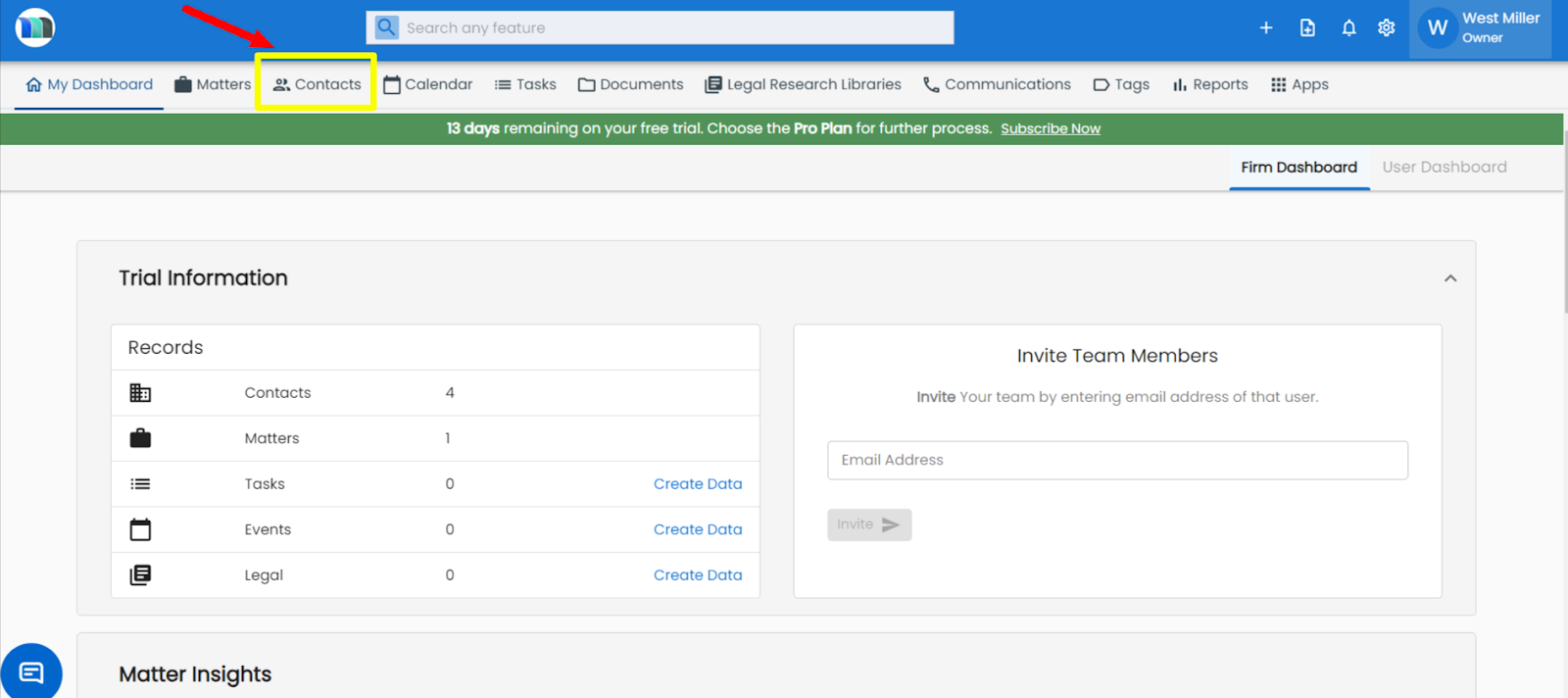
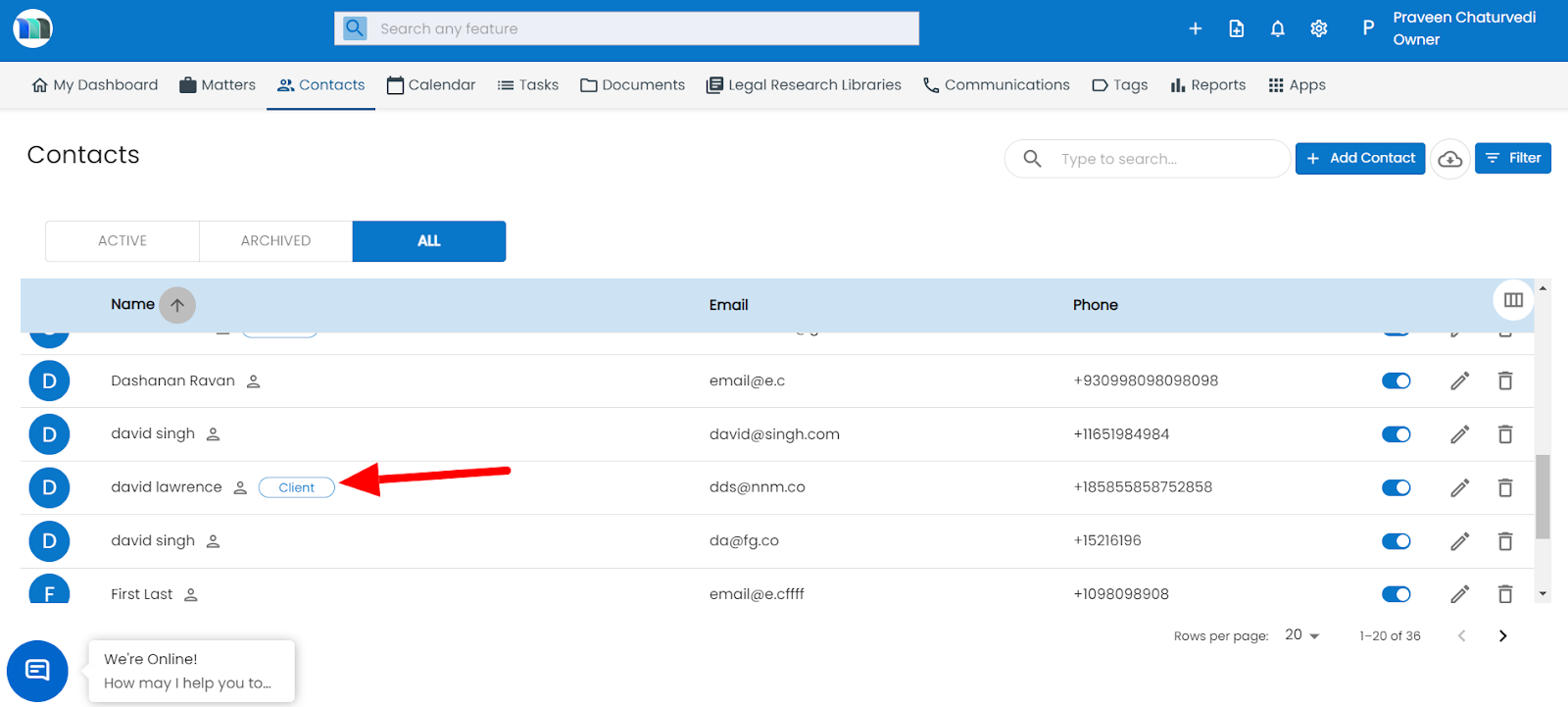
2- Click on the contact you want to check the completed tasks for, then click on tasks section.
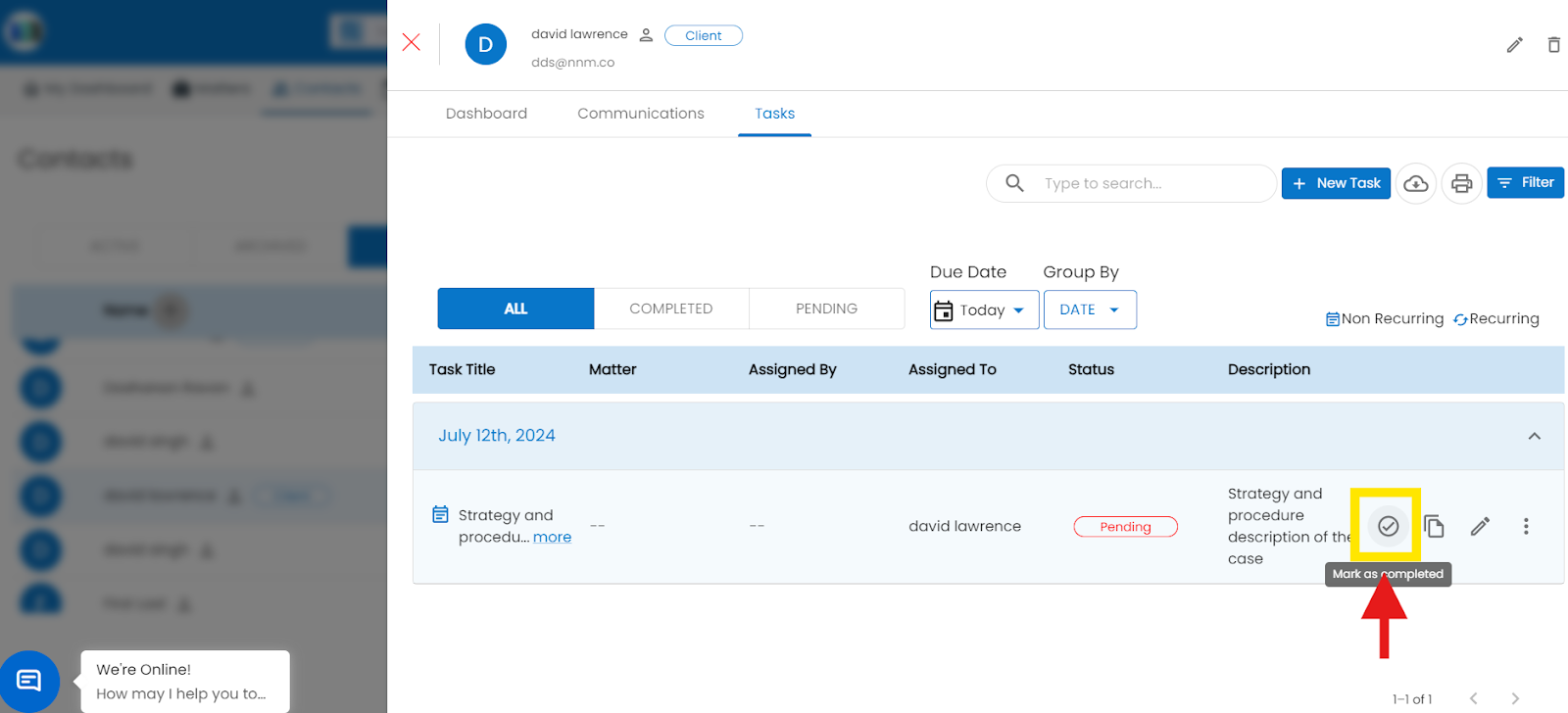
3 - Goto to Tasks tab, click on the tick icon please in the front of the task to mark task as completed.
Related Articles
How to mark a task as completed under matter?
1. Click on the Matters tab present on the nap bar. 2. Click on the matter for which you want to mark a task as compeleted. 3. Click on the check icon present in front of the task, that you want to mark it as compeleted, under Tasks tab. 4. Click on ...How can I mark a task as complete?
1. Click on the Contacts tab present on the nap bar. 2. Click on the Contact for which you want to mark a task as complete. 3. Click on the Tasks tab, then click on the tick icon "Mark as completed" present on the right-hand side of the task.How do I edit a task?
Open the Tasks module. Locate the task you want to edit (use search or filters by status, priority, or assignee). Click the task title or the Edit icon next to it. Make the necessary changes (title, description, due date, priority, assignee, or ...How to create a task in the calendar section.
Click Add in the calendar and select Task. Enter the task details. Add a notification (optional). Link a matter and upload files (optional). Click Save.Overview of the Tasks Module
The Tasks Module in MatterSuite helps legal professionals efficiently organize and manage daily work. It centralizes all tasks in one place so teams can clearly see responsibilities, track deadlines, and stay productive. Each task can include details ...