How can I add a hearing calendar under matter?
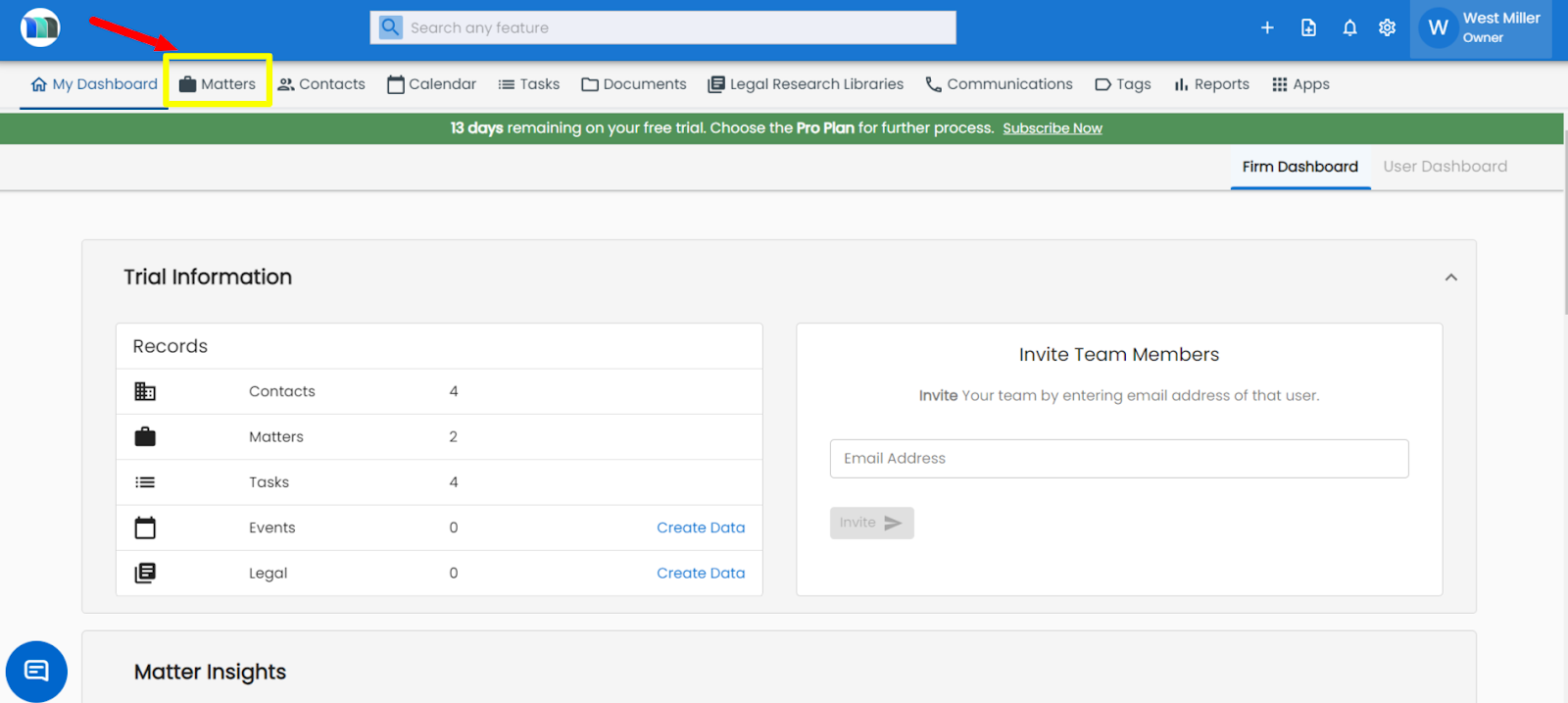
1. Click on the Matters tab present on the nap bar.
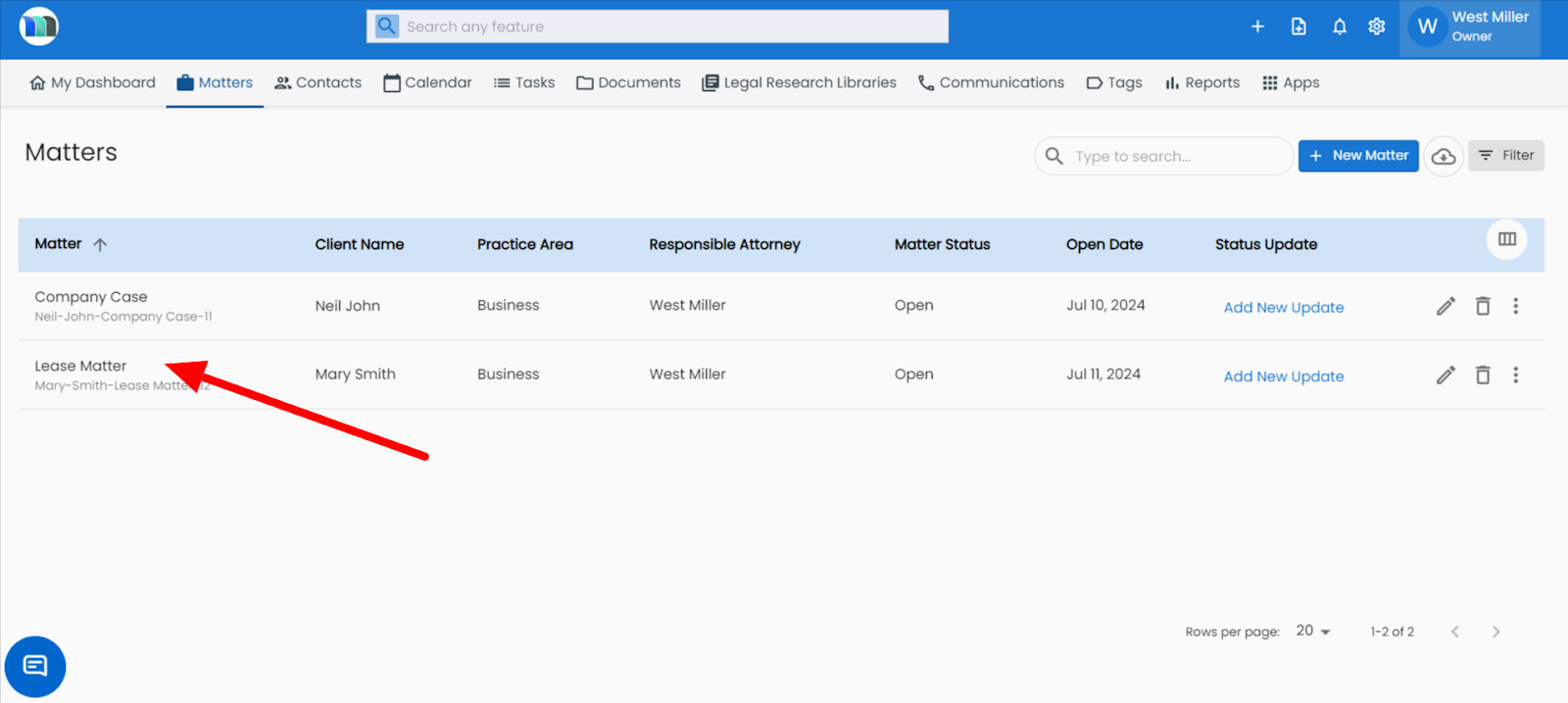
2. Select the matter for which you want to add a hearing calendar.
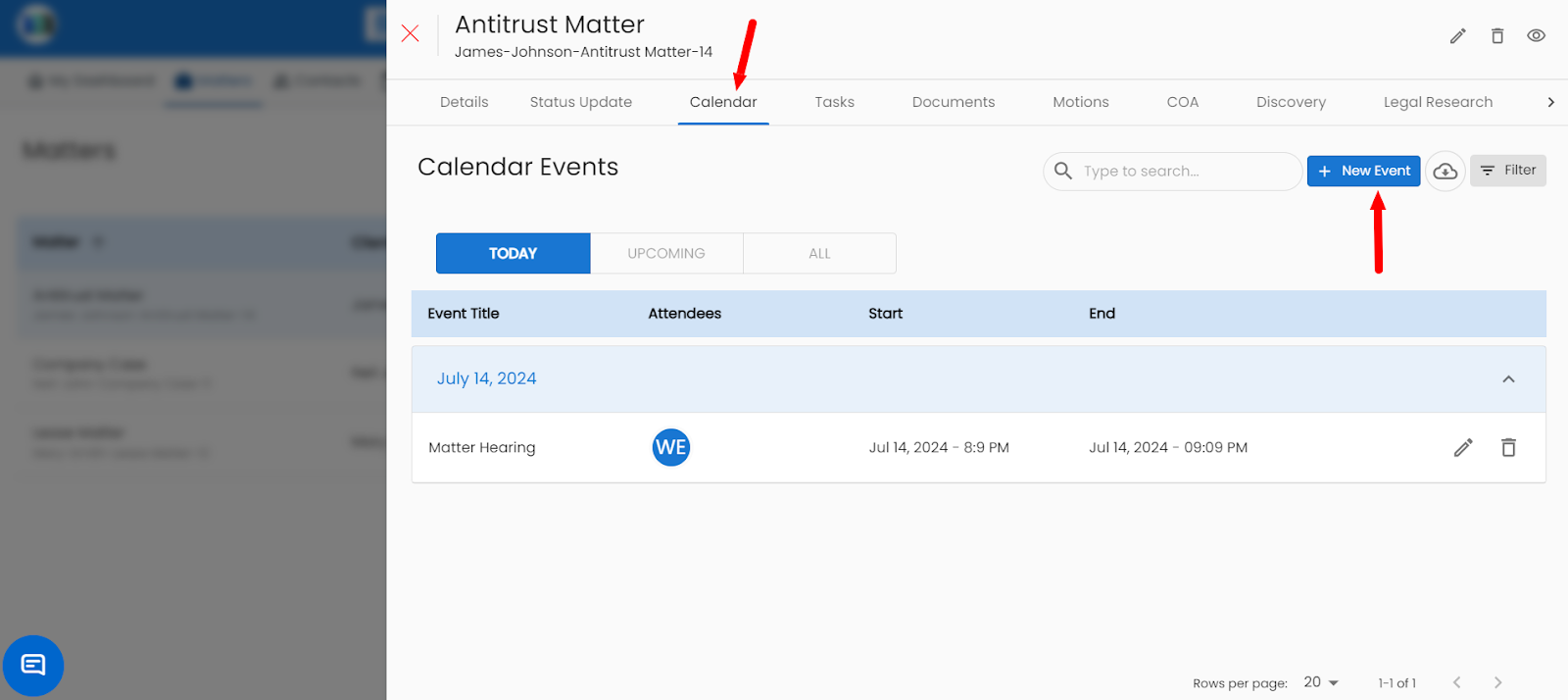
3. Click on the Calendar tab appearing on the screen and then click on the "New Event" button.
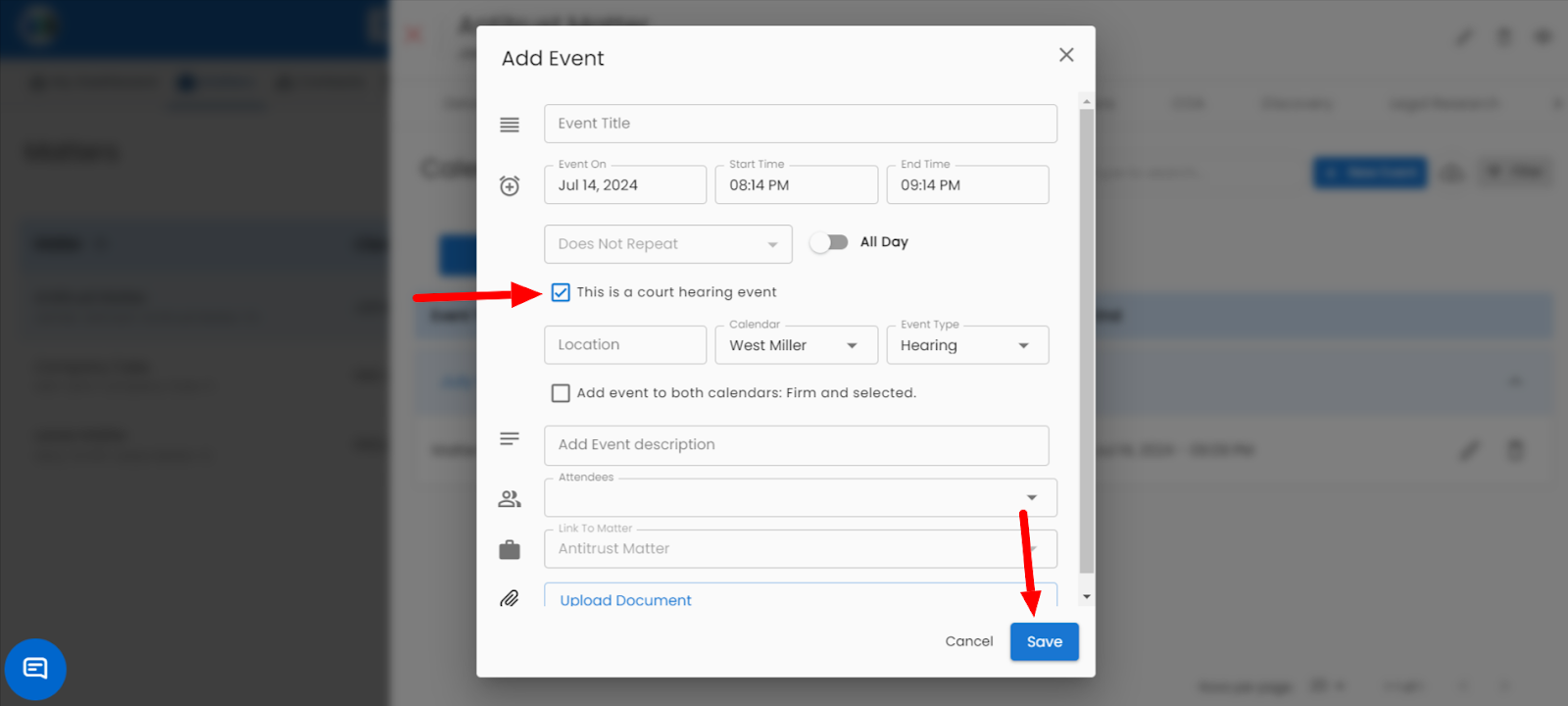
4. Add your details, and mark (tick) on “This is a court hearing event” for adding the event as a hearing date, and then click on save button.
Related Articles
How to set a hearing in MatterSuite calendar.
Open Calendar → click Add Event. Enter title, date, time, and location. Click Link to Matter and choose the case. (Optional) Add participants and upload documents. Set a reminder if needed → Save.How to link an event with Matter.
Open the Calendar. Click Add Event (or select an existing event). Enter the event title, date, and description. Click Link to Matter. Choose the relevant matter from the list. Click Save to link the event and finish.How to create a task in the calendar section.
Click Add in the calendar and select Task. Enter the task details. Add a notification (optional). Link a matter and upload files (optional). Click Save.How to add a new motion in the Matter?
Go to the Matters section. Select the Matter where you want to add the motion. Open the LawSuite tab and click on the Motions section. Choose your motion type, fill in the details, and click Save. Refer to the image below .Overview of MatterSuite Calendar
The MatterSuite Calendar is a smart and organized scheduling tool designed for law firms and legal teams. It helps users efficiently manage their meetings, hearings, deadlines, appointments, and events; all from one central place. The calendar ...